The Status
Monitor Administration browse
screen allows the user to view a list of all Status Monitors. From
here, you can create a new Status Monitor, edit an existing Status
Monitor, make a Status Monitor inactive or remove a Status Monitor
entirely from the system.
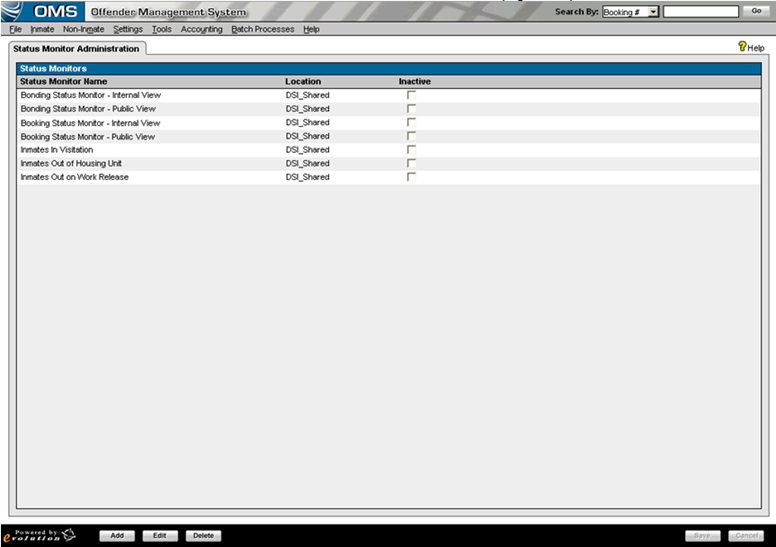
Log in to OMS and has select Status Monitor Administration from Settings menu.
The browse screen contains a list of all Status Monitors. Status Monitors will be sorted in alphabetical order by Status Monitor Name with active Monitors appearing at the top of the list and inactive Monitors appearing at the bottom.
Mark the Inactive checkbox to make a Status Monitor inactive. Unmark the Inactive checkbox to make the Status Monitor active once again.
Click the Add button to create a new Status Monitor. The Status Monitor Starting Criteria Screen is displayed.
Double-click on a row or highlight a row and click the Edit button to edit an existing Status Monitor. The Status Monitor Starting Criteria screen is displayed.
Highlight
a row and click the Delete
button to delete an existing Status
Monitor. The
Delete Warning Popup
appears.
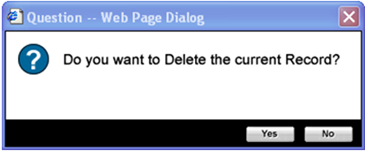
Click the Yes button to permanently remove the Status Monitor from the system and close the popup.
Click the No button to close the popup without removing the Status Monitor from the system.