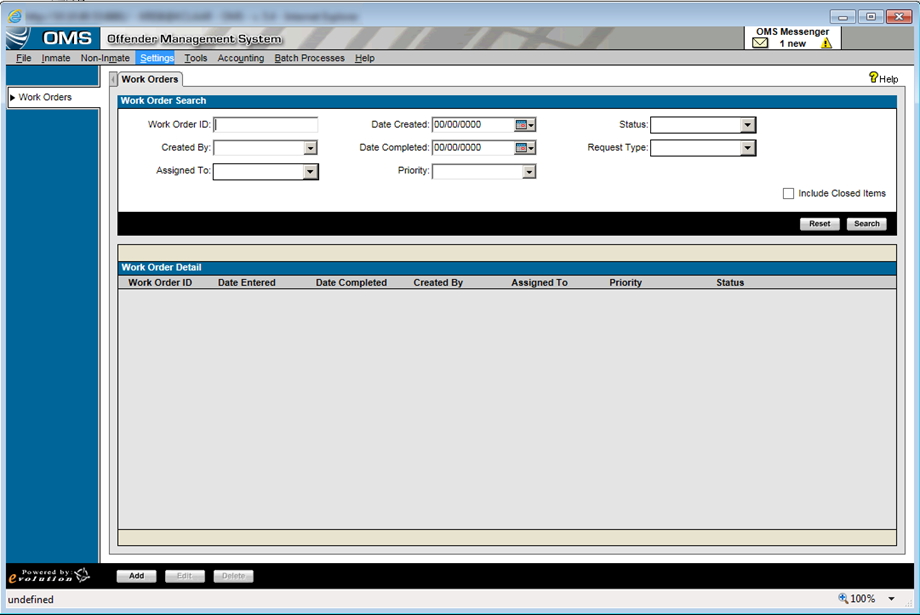
The
main page displays all active work orders when opened. However,
work orders filter by jail location. View only the work orders created
in the current jail location by applying the location filter.
Use
available fields to search for specific work orders, open or closed or
create a new work order.
Work Order ID searches using the auto generated ID.
Created By pulls from the standard employee table.
Assigned to is a newly created maintenance crew table, unless employees are tracked in the employee table.
Date entered searches by the date entered field
Date completed searches by date completed.
Priority contains the list from the Priority code table.
Status defaults to Open.
Request Type contains choices input in the Request Type code table.
Include Closed Items check includes closed work orders meeting search requirements.
Reset clears all fields.
Search performs the search.
Default search only displays open work orders.
The browse screen is sorted by Enter Date, with the most recent listed first.
Add begins a new Work Order.
Edit will edit the selected work order.
Delete will delete selected
work order. Proper security is required to delete work orders.
Work Order Information Area:
The attachment icon can be used to add any photos or invoices collected.
Work Order ID will not auto-generate. It will generate when the Work Order is saved.
Date entered will default to current, will be editable.
Created by will be standard employee table, will default to user currently logged in.
Priority will be a new code table and be used to set the importance of the repair.
Assigned to is a new code table or pull from existing employee table, possibly be maintenance group (plumbers, carpenters, electricians) depending on user requirements. There is a system parameter to choose.
Status is a new code table.
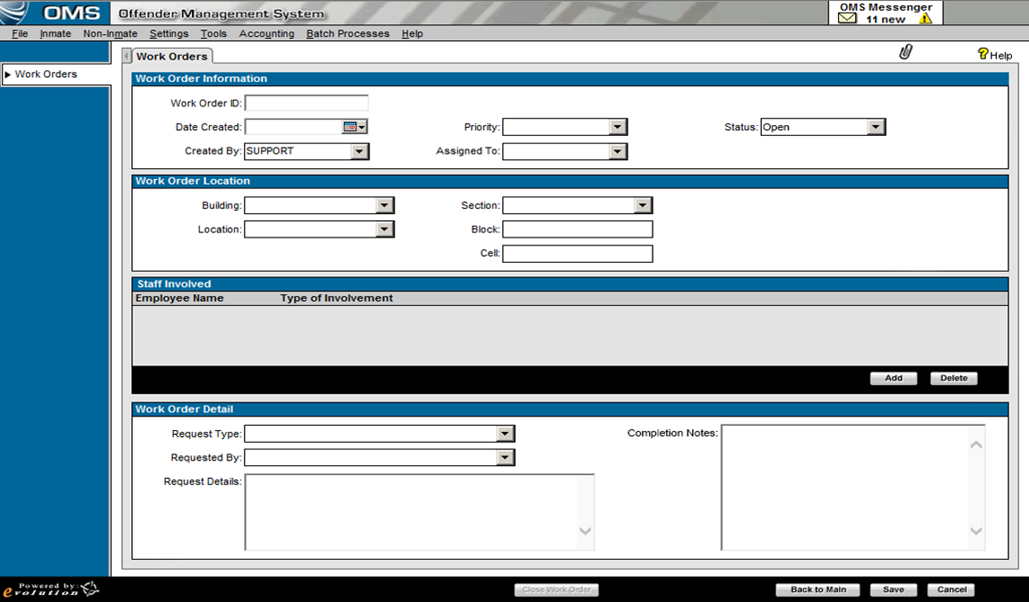
Work
Order Location Area:
Building is a new code table.
Location is a new code table. Some examples are; Dining area, commissary, rest room.
Section, Block,
and Cell will pull from existing
code tables. Used if issue is in a cell.
Staff
Involved Area:
Employee Name will contain the name of an employee that is needed as a result of work being performed.
Type of involvement is freeform
and used to explain the role of the employee.
Work
Order Details Area:
Request Type will be a new code table. Examples are; repair, replace, move.
Requested By will be pull from the standard employee table.
Request details will be a freeform area used to explain the issue.
Completion details will be freeform area and used to detail the circumstances of the repair. This must be filled out before closing the work order, otherwise an error will appear warning the user to complete this field.
Close Work Order will close the work order, will set the work order to closed and will not allow editing. This button will not be active until the full screen is saved.
Back To Main will take user back to main page
Save will save Work Order data entered
Cancel will cancel all changes, clearing the screen.